
10.2.2 Milestones |
Milestones are one of the key components of Financial Management in Velos eResearch. Whereas budgets create a framework to estimate study costs based on calendars and custom items, Milestones can be thought of as “financial achievement triggers”. When the condition for a milestone rule is met, an achieve milestone is triggered as an item that can be invoiced.
Milestones can be triggered based on changes in study status, patient status, visits or events that are marked as complete, or as an additional miscellaneous fee. The type of milestone determines how it is triggered.
See the table below for a detailed description of each milestone type and their configuration options:
|
Milestone Section
|
Column Name
|
Description
|
Example
|
|
ALL
|
Payment Type
|
Determines the type of payment as a result of the milestone achievement. Options include:
▪ Payable
▪ Receivable
▪ Invoiceable
|
N/A
|
|
Amount
|
The value of each milestone achievement generated by this milestone rule.
|
N/A
| |
|
Holdback
|
Amount of the milestone that should be held back as a separate billable amount. Defined as a percentage of the milestone amount.
|
| |
|
Payment For
|
Flags the recipient of the payment. Default options include:
▪ Coordinator
▪ Investigator
▪ Patient
▪ Sponsor
|
| |
|
Milestone Status
|
The state of the milestone. Will not begin logging achievements per milestone rules until it is marked as Active. Options include:
▪ Active
▪ Inactive
▪ Work in Progress
|
N/A
| |
|
All “Status” Milestone Types (Patient, Study, Visit, Event)
|
Limit
|
The maximum number of achievements that can be logged from this milestone. If left blank, an unlimited amount of achievements can be logged against this milestone rule.
|
|
|
Date From
|
Status date that the target achievement defined in the Event Status field must be, at a minimum, to be counted as an achievement. Any event status achievements before this date will not be a milestone achievement for this rule. If left blank, there are no restrictions.
|
If a rule was set to the date of 10-Oct-2022, no trigger statuses (e.g. patient status, event status, visit status, etc.) with status dates before 10-Oct-2022 will count as an achievement for this milestone.
| |
|
Date To
|
Status date that the target achievement defined in the Event Status field must be, at a maximum, to be counted as an achievement. Any event status achievements after this date will not be a milestone achievement for this rule. If left blank, there are no restrictions.
|
If a rule was set to the future date of 10-Oct-2024, no trigger statuses (e.g. patient status, event status, visit status, etc.) with status dates after 10-Oct-2024 will count as an achievement for this milestone.
| |
|
Patient Status
|
Patient Count
|
Specify the number of the patients that should be tracked. This column does not apply to the “Study Status” milestone type.
|
If a sponsor pays for every fifth patient screened, enter “5”. When every fifth patient on the study has the screen status added, a milestone will be achieved.
|
|
Patient Status
|
Specify the desired patient status that should be tracked.
|
N/A
| |
|
Milestone Status
|
Specify the “Active” status when the milestone should be turned on or select “Inactive” if a Milestone no longer applies.
|
N/A
| |
|
Visit
|
Calendar
|
Select the study calendar from which you want to derive the visit milestones.
|
N/A
|
|
Visit
|
Specify the visit name for the milestone.
|
N/A
| |
|
Milestone Rule
|
Select the logic that determines when the visit is considered complete.
|
Options include:
“All events within the visit are marked as-”, “At least one event is marked as-“, and “On Scheduled Date”.
| |
|
Event Status
|
Dependent on Milestone Rule field. This completes the logic selected in the previous field. This field is left blank if “On Scheduled Date” is selected in previous field.
|
Options include:
“Not Done“, “Not Required“, “Done”, “To be rescheduled”, and “Suspended”.
| |
|
Milestone Status
|
Specify the “Active” status when the milestone should be turned on or select “Inactive” if a Milestone no longer applies.
|
N/A
| |
|
Event
|
Calendar
|
Select the study calendar from which you want to derive the event milestones.
|
N/A
|
|
Visit
|
Specify the visit name for the milestone.
|
N/A
| |
|
Event
|
Specify the specific event associated with the calendar visit for this milestone.
|
N/A
| |
|
Milestone Rule
|
Select the logic that determines when the event is considered complete.
|
Options include:
“All events within the visit are marked as-“, “At least one event is marked as-“, and “On Scheduled Date”.
| |
|
Event Status
|
Dependent on Milestone Rule field. This completes the logic selected in the previous field. This field is left blank if “On Scheduled Date” is selected in previous field.
|
Options include:
“Not Done“, “Not Required“, “Done”, “To be rescheduled”, and “Suspended”.
| |
|
Milestone Status
|
Specify the “Active” status when the milestone should be turned on or select “Inactive” if a Milestone no longer applies.
|
N/A
| |
|
Study Status
|
Study Status
|
Specify the study status that must be achieved for the milestone to be considered complete.
|
e.g. – “Active/Enrolling”, “IRB: Approved”, etc.
|
|
Milestone Status
|
Specify the “Active” status when the milestone should be turned on or select “Inactive” if a Milestone no longer applies.
|
N/A
| |
|
Additional
|
Milestone Achieved Date
|
Indicates the calendar date that this additional milestone was achieved.
|
N/A
|
|
Milestone Description
|
Enter a description of the milestone.
|
e.g. – “Contract Renewal”, “Custom Recruitment/Retention Milestone”, etc.
| |
|
Milestone Status
|
Specify the “Active” status when the milestone should be turned on or select “Inactive” if a Milestone no longer applies.
|
N/A
|
|
Note:
|
1. All required fields are indicated by a red asterisk in the system
2. An Additional milestone is considered “achieved” when the additional milestone rule status is “Active” and available to be invoiced
3. When a Milestone Payment Type is set to Payable, the Holdback field is locked at 0.00%
4. Milestones may also be added to Admin Schedules following the same steps as described in this section. However, if the calendar’s status is Active, modifications cannot be made
|
To manage a milestone:
1. From the study management page, or default homepage, click the Financial Summary button, and select the Milestones tab.
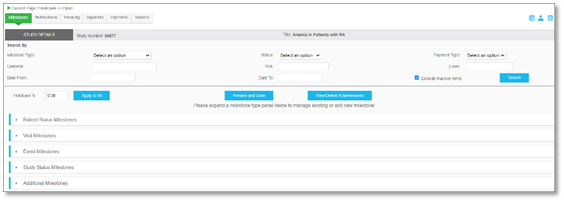
-OR-
From the Study page, navigate to the Milestone tab.
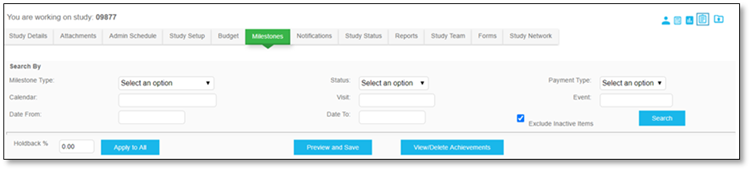
Here, users will have accessibility to various functionalities:
|
Icon
|
Name
|
Description
|
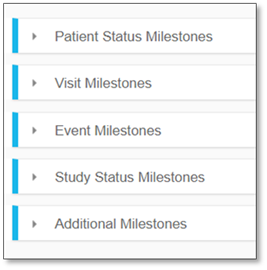 |
Accordion Dropdown Menus
|
Use the Dropdown Menu button to expand or close a section of the Milestones tab (not applicable to the budget milestones page).
|
 |
Add field
|
Use the Add field to specify the number of rows to be added for a milestone type.
|
 |
Plus
|
Use the Plus button to add the rows from the Add field.
|
 |
Preview and Save
|
Use the Preview and Save button to confirm any changes made to milestones. If you do not click the Preview and Save button, you will lose your changes.
|