
6.6.1 Add Quick Links |
To add new account-level links to the Quick Links section of the Default Homepage:
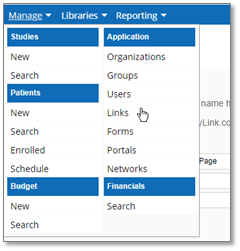
1. Click the Manage menu in the upper-left hand corner of the screen and select Links under the “Application” heading.
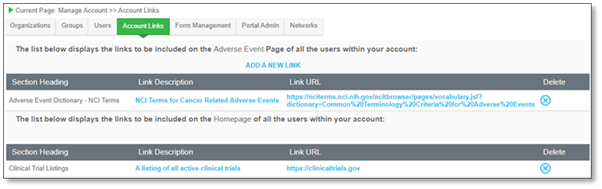
The Account Links page displays:

▪ The view above is if there is an existing link in the system.
2. Add new links by clicking ADD A NEW LINK on the left-hand side of the screen, for an initial link, or if there are existing links the ADD A NEW LINK will be located in the middle of the screen.

The Enter Link Details page displays:
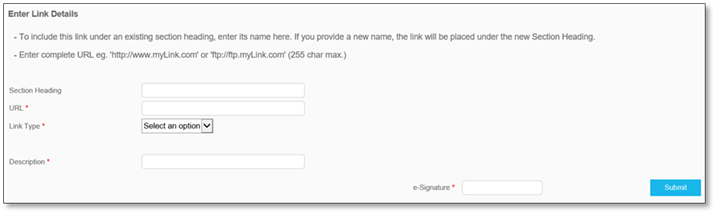
3. Enter the required information into the available fields including Section Heading, URL, and Description details. Also, select the appropriate Link Type of General or Adverse Event from the dropdown.
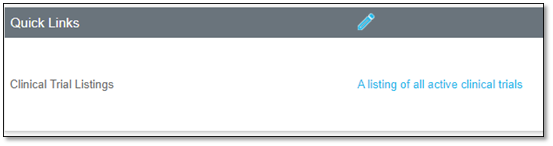
General Account Links appear on the Homepage in the Quick Links section
|
Enterprise Only:
|
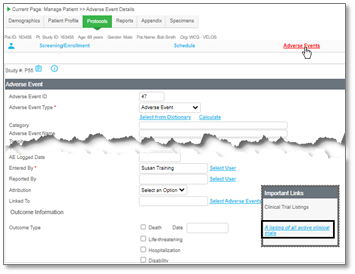
General Type and Adverse Event Type of Account Links will appear as two separate headings in the Account Links page. If the AE option is selected, the link displays on the Manage Patient Adverse Event Details page.
 |
|
Enterprise Only:
|
When adding Adverse Events, all AE Details pages for all patients in all studies will have a clickable AE link.
 |
|
Note:
|
Section headings organize your links by grouping them together under the same description. If you would like multiple URLs to display under the same section heading, enter the same section heading text for each entry. Ensure that any links you add to an existing heading uses the same spelling and punctuation that was used in the existing section heading.
|
|
Warning:
|
When entering a URL, it must contain either http:// or https:// for the links to work properly. Failing to do so will result in broken, unusable links.
|
4. To save the new links, enter your e-Signature and click Submit to confirm.

The new links have been added and now display within the Quick Links section of your Homepage and on the Account Links page.
|
|