
6.5.2 Add Active Users |
Permissioned users can add new users to the system from the Active Account Users page.
|
Note:
|
Prior to adding users, confirm they do not already exist in the system by searching. Refer to Search Users. The system will not allow you to proceed, if trying to submit a username which is already in the system. If trying to submit an email that already exists in the system, a warning message will appear.
|
To add new Active users:
1. Click the Manage menu in the upper-left hand corner of the screen and select Users under the “Application” heading.
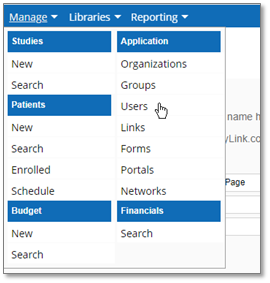
The Active Account Users page displays:
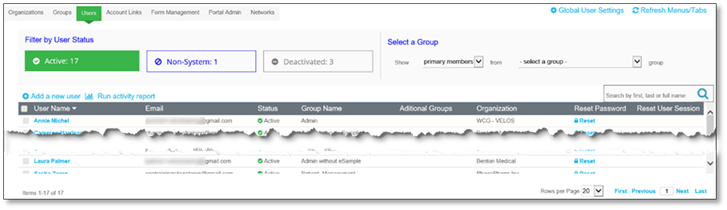
|
Note:
|
Below is the process for adding an Active user to the system. An Active user will actively work in the system to add, edit, and/or view data. Continue to Non-System Users and Deactivated Users to learn more about these types of users.
|
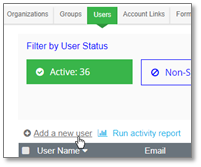
2. Click Add a new user.
The User Details page displays:
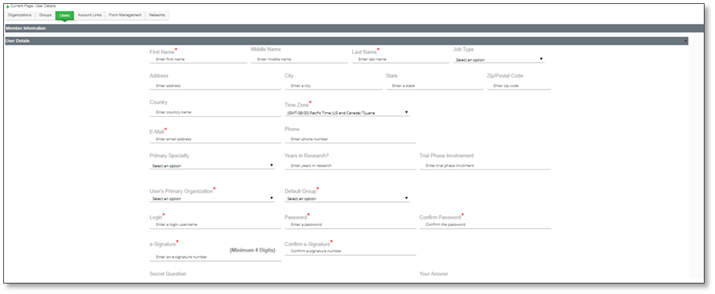
3. Enter information as required into the available fields into the User Details section. All required fields are marked by an asterisk.
|
Note:
|
1. Additional optional fields will be available in eResearch Enterprise, such as “Middle Name
2. “Primary Specialty” field should not be completed for a user in the users detail section. It is intended to provide an additional level of access security that cannot be changed.
3. For information regarding Password and e-Signature requirements, see the Password / e-Signature section.
|
4. Once all user details have been entered, enter your e-Signature and click Submit to confirm.

|
Note:
|
Once a user has been created, eResearch will automatically send two system generated welcome emails, providing the new user with login credentials.
|