
9.2 Patient Search |
Prior to adding a Patient Record to the system, it is crucial to search for the patient to prevent duplicates. A patient in eResearch will have one patient record but may be associated to multiple studies.
To search for a patient via the default homepage:
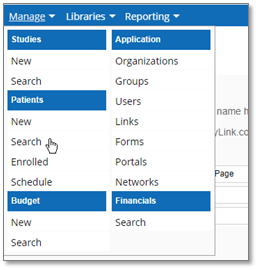
1. From the Homepage, navigate to the “Patients” section under the Manage tab and click Search link.
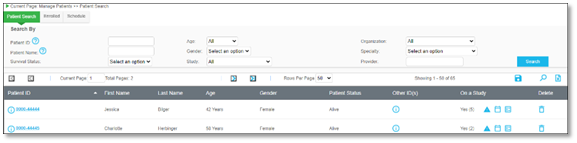
The Patient Search page displays:

Users may use the search options to filter patients existing within the system. Filtering options include:
▪ Patient ID
▪ Patient Name
▪ Survival Status
▪ Age
▪ Gender
▪ Study
▪ Organization
▪ Specialty
▪ Provider
2. Enter the desired information to filter the search results by and click Search to search for any patients matching the search criteria.

The search results display:
|
Note:
|
The Organizations populated in the Organization dropdown will be based on the user’s Organization access(es).
|
3. Proceed as appropriate based on search results to Manage an Existing Patient or Add a New Patient record.
4. To hide any columns from view, right click the header and uncheck applicable header name(s).
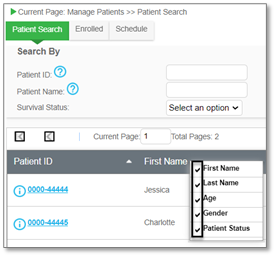
5. The column(s) selected will be hidden. Right click the header again and check to unhide, when needed.
▪ Navigating away from the page will remove the selections, unless the view is saved

▪ Click Save View, to save the column selections to only view the specific columns upon returning to the Patient Search tab
▪ Hiding applies to all three tabs: Patient Search, Enrolled, and Schedule
▪ Capability is available for hiding columns. When using, the columns will still appear in an exported Excel table.
|
|