
9.5 Add a New Patient |
This section will cover how to Add a New Patient to the eResearch database and/or study. It is important to search for a patient prior to adding a new patient to prevent creating duplicate patient entries. For information on how to complete a Patient Search, see Patient Search.
|
Note:
|
If your environment has an ADT (EHR Demographic) interface, your process for adding a new patient may be different. Check with your administrator.
|
To add a new patient from the default homepage:
1. Navigate to the Manage tab. Under “Patients”, click New.
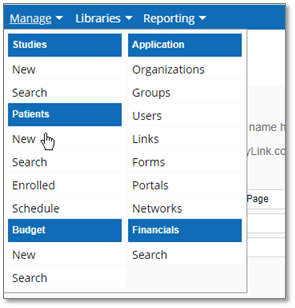
The New Patient: Patient Details page displays:
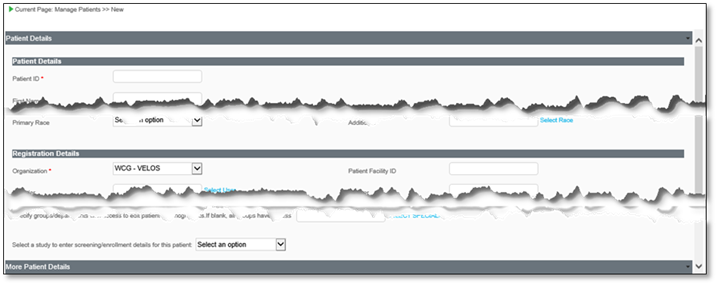
2. Enter patient specific information in the fields ensuring to enter data into all required fields. If the patient is associated with a study that is already set up, select the study from the dropdown to open screening/enrollment information upon saving the patient record.

|
Warning:
|
It is NOT recommended to use the Select Specialty option on this page as it prevents user access to the patient record.
|
|
Note:
|
If a Patient with the same information already exists in the system, a warning will display but it is recommended and best practice to search for a patient properly before adding a patient record to the system.
|
3. Enter the appropriate information and enter your e-Signature and click Submit to confirm.

4. If you selected a study to associate the patient to in step 2, the Patient Study Status page will display in a new window. Select a Status and Status Date.
▪ If the Patient Study ID was selected to be automatically generated, then leave as is.
▪ Or, if the Patient Study ID was set to manual generation, then it will be a copy of the Patient ID, which can then be revised as needed, to be study specific.
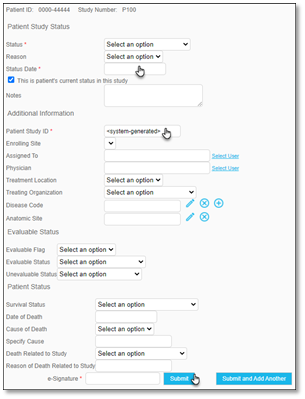
5. Then enter e-Signature and click Submit to confirm.
-OR-
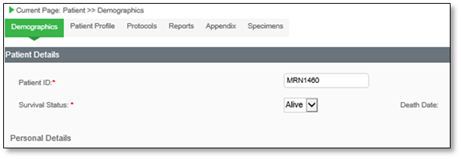
If you did not select a study, the Patient Demographics page displays after saving the patient record.
|
|