
9.3 Enrolled Tab |
When first landing on the enrolled patients tab, the Patients on Study field will default to the first alphanumerical study in the list. Data in the table will show the patients associated with the selected study. The search results will display the patient’s most recent and current statuses. New patients may be added to the selected study. Additionally, the enrolled patient’s Visit Status may be updated, and a patient study record may be accessed for other system functionalities.
To access and then update data in the Enrolled tab, for patients on a study:
1. Click Manage > Enrolled (Patients).
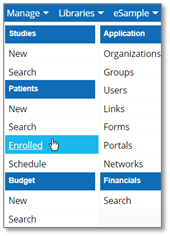
2. From the default landing page, click Patients on Study dropdown and select a different study, if needed. Then click Search.

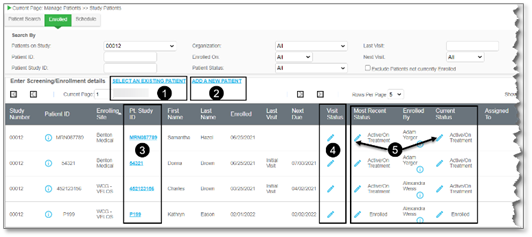
For features available on the Enrolled tab, refer to the diagram and steps below:
|
Number
|
Feature Name
|
Description
|
|
1
|
Select An Exisitng Patient
|
Used to access a Patient ID search page. Complete the applicable fields, then click Search, to view a single study patient record.
|
|
2
|
Add A New Patient
|
Used to add a new patient to the study. Complete the required fields at minimum, select Enrolled in the Status dropdown, then e-Sign and Submit.
|
|
3
|
Pt. Study ID Link
|
Used to access the Schedule page for a patient study record. Click the link in the Pt. Study column. For more information, refer to Patient Schedules.
|
|
4
|
Edit Visit Status
|
Used to change the date for a selected visit(s) / event(s) for a specific study patient record. Search fields to filter, select checkboxes for applicable visti(s) and / or event(s). select the appropriate Status field(s) from the dropdown(s), add Status Valid From Date(s), e-Sign and Submit.
|
|
5
|
Edit Most Recent OR Current Status
|
Used to access the study patient record’s Screening / Enrollment page. Click Edit in either the Most Recent Status or Current Status cloumn. For more information, refer to Screening/Enrollment.
|
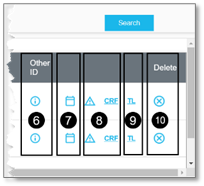
For additional features on the far right of the Enrolled tab, refer to the diagram and steps below.
|
Number
|
Feature Name
|
Description
|
|
6
|
View
|
Used to view a table showing Site Name and ID for other study patient associated records for the selected patient. Click View in the Other ID column for a specific patient record.
|
|
7
|
Calendars
|
Used to view a printable and downloadable specific patient schedule for the current and upcoming month. Click Calendars to view the patient specific calendar in a new window.
|
|
8
|
Adverse Event OR CRF
|
Used to view a printable and downloadable list of adverse events or CRFs for a specific patient. Click Adverse Events or CRF to view the patient specific Patient Event/CRF page in a new window.
Note: Adverse Events are not applicable to eResearch eXpress.
|
|
9
|
Patient Timeline Report (TL)
|
Used to view a printable and downloadable patient timeline of patient events. Click Patient Timeline Report (TL) to view the patient specific Patient Timeline Report in a new window.
|
|
10
|
Delete
|
Used to delete a study patient record, if permissioned. Click Delete, click OK in the pop-up, e-Sign and click Submit to confirm.
|
|
Warning:
|
Once a study patient record is deleted, the action cannot be undone. Delete with caution.
|
|
|